Check the downloaded record
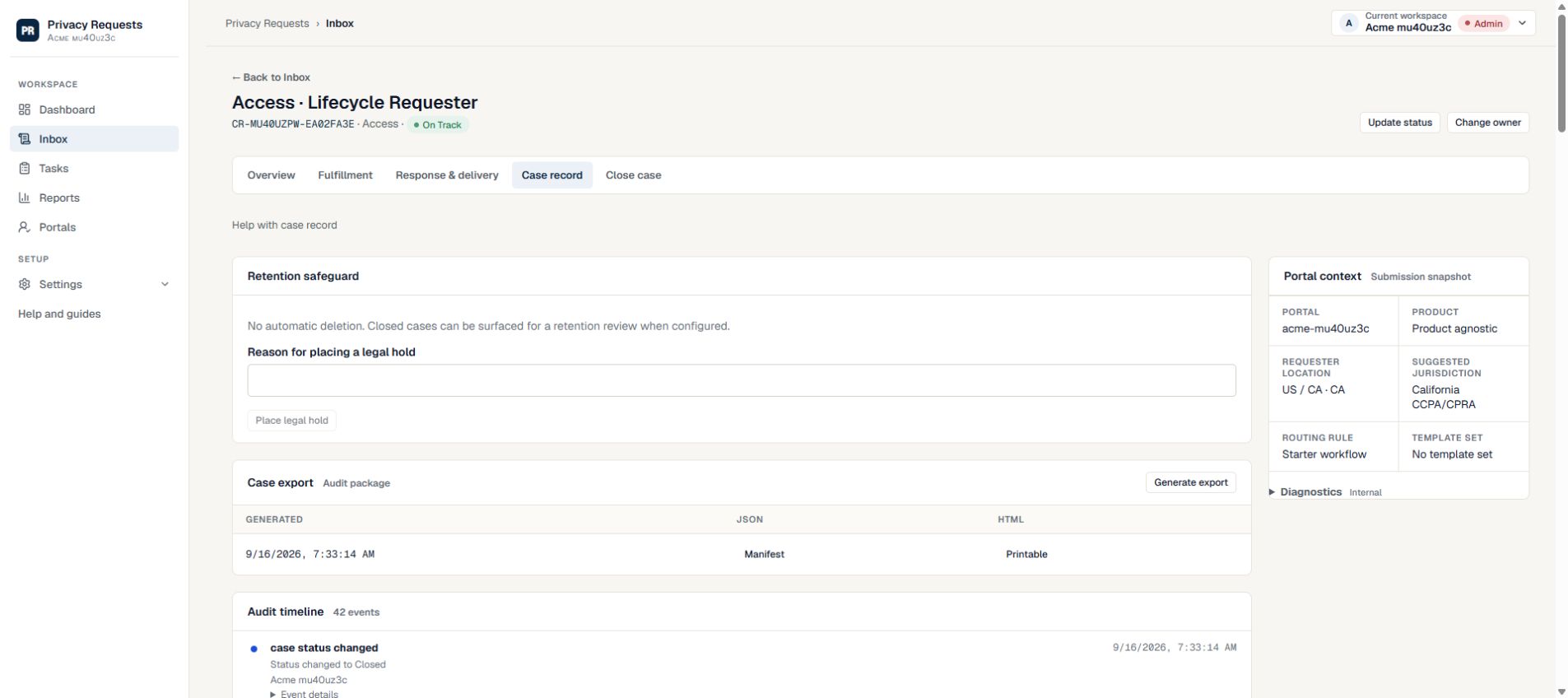
After generating the case export, download and open it in an authorized location. Check the case reference, export time, decision history and delivery evidence against the case before relying on it.
- Resolve missing or failed downloads before recording the export as retained.
- If later decisions change the case, generate a fresh record and identify which version is authoritative.
- Keep internal audit exports separate from the files approved for the requester.
Close only after final checks
Case closure is available from the Close case tab after the readiness checks pass. The Finish line panel links to each incomplete check, and the closure panel explains what you still need to complete.
- 1. Open Close case and select each incomplete Finish line check to resolve it.
- 2. Confirm identity, fulfillment tasks, response approval, delivery evidence or a non-delivery rationale, and a current export.
- 3. Choose Fulfilled or Rejected, enter the required final closure note, and select Close case.
- 4. If closure is blocked, complete the remaining steps shown on the page.
Export the case record
The Case record tab contains Case export and the audit timeline. Generate the export after the latest case activity, then use Download JSON for the data file or Open report for the readable report.
- 1. Open Case record and select Generate export.
- 2. Wait for the status message that the case export was generated.
- 3. Select Download JSON or Open report from the generated export row.
- 4. If the case changes after the export, generate a new export before closing.
Write a closure note another person can understand
The final note should summarize the actual outcome and any important exception. It should help a colleague understand the completed work without opening every task or reconstructing conversations.
- Describe what was provided or why the request was rejected, using the reasoning approved by your team.
- Reference unresolved limits or permitted delivery exceptions rather than implying that every requested action was completed.
- Check that the export reflects the latest work before closing.
- Closing a case records its outcome; it does not automatically delete the case or replace your retention policy.
Need more help?
Product support is available at support@privacyrequests.co. Requesters should contact the company handling the request first because that company controls the case record and response decisions.